
This article serves as my courtesy to Apple for their amazing hardware design. Most of all, the intuitive controls that make using a Mac so seamless. Here is a simple guide to taking screenshots, and saving in formats as you want.
What to Know
Press and hold shift +plus command +plus 3 to take a quick screenshot.
Use shift+command+4 or shift+command+plus 4 +plus spacebar to screenshot a portion of the screen or an entire window.
Use shift +plus command +plus 5 to launch the screenshot app. Now choose the type of screenshot you want to capture.
This article covers how to take screenshots on a Mac with key combinations and the screenshot app built into macOS. You’ve always been able to take screenshots on a Mac, but Apple included some dedicated software with macOS Mojave (10.14).
The shots below are from macOS Catalina (10.15), but you can use the same commands in earlier versions of macOS and Mac OS X.
How to Take a Screen Grab on Mac
There are several key combinations that you can use to take screenshots on Mac. Use the shift +plus command +plus 3 being the most commonly used. These key combination snaps a screenshot of your entire screen. Not excluding any part of the visible windows, the desktop, the dock, and any other visible elements.
How to Take a Screenshot on a MacBook Air
Open the window you want to screenshot or otherwise arrange the screen to your liking.
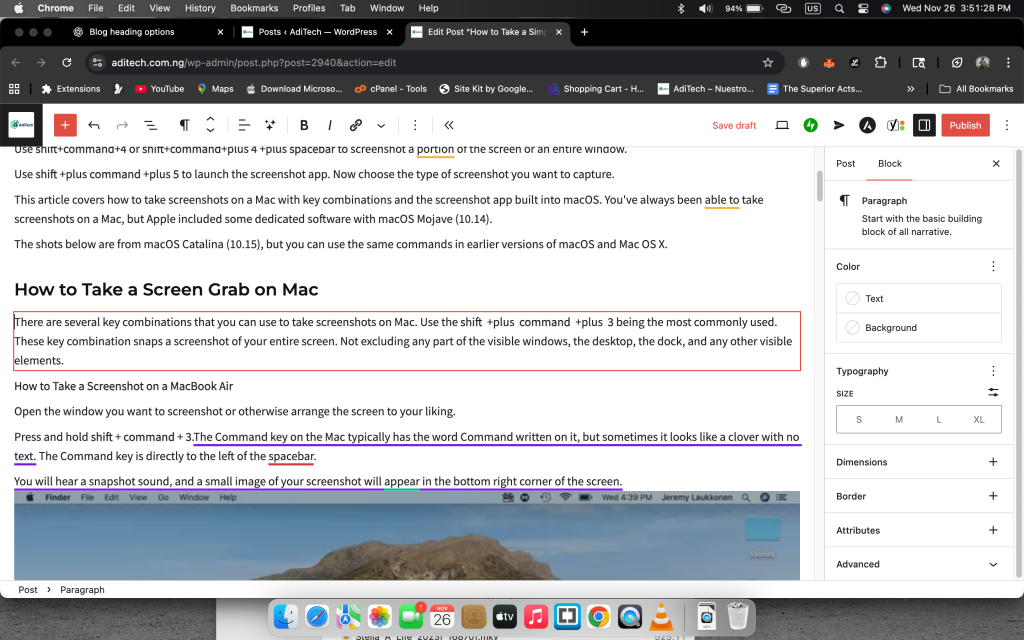
Press and hold shift +plus command +plus 3. The Command key on the Mac typically has the word Command written on it. Although some versions of mac look like a clover with no text. The Command key is directly to the left of the spacebar. Right to the left side of the left option key on the macbook 2018 pro.
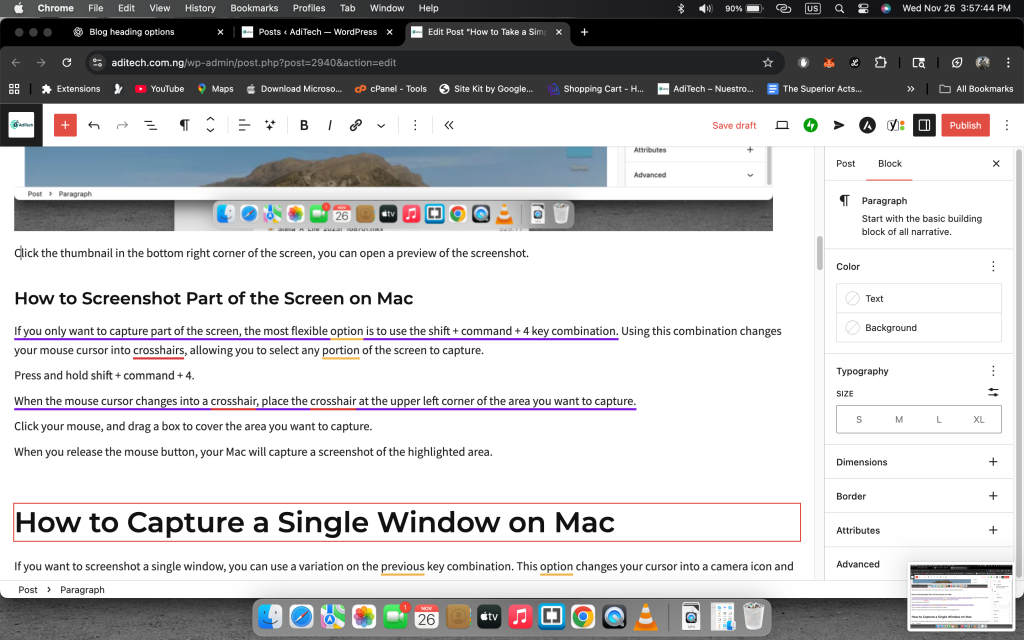
Click the thumbnail in the bottom right corner of the screen, you can open a preview of the screenshot.
How to Screenshot Part of the Screen on Mac
A simple combination of keyboard keys, the shift +plus command +plus 4 key. Using this combination changes your mouse cursor into crosshairs, allowing you to select any part of the screen to capture.
Press and hold shift +plus command +plus 4.
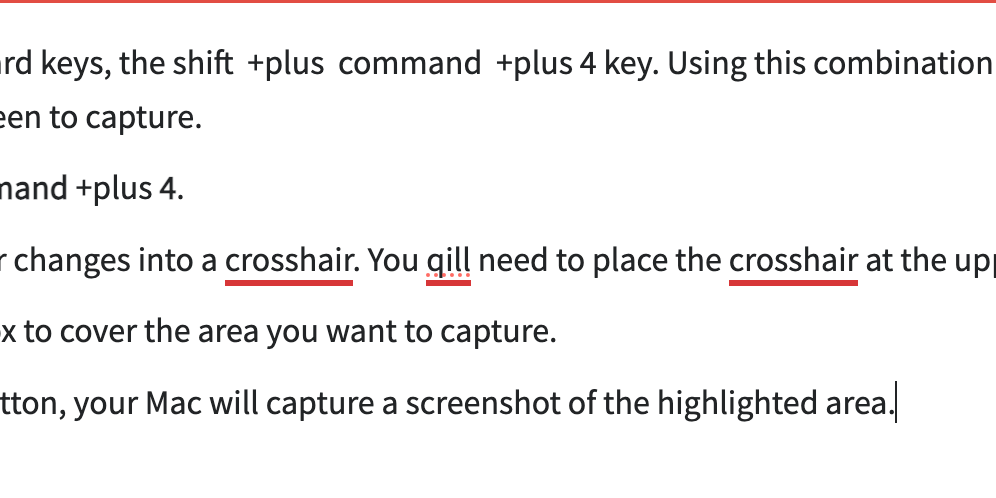
Observe when the mouse cursor changes into a crosshair. You qill need to place the crosshair at the upper left corner of the area you want to capture.
Click your mouse, and drag a box to cover the area you want to capture.
When you release the mouse button, your Mac will capture a screenshot of the highlighted area.
How to Capture a Single Window
If you want to screenshot a single window, you can use a variation on the previous key combination. This option changes your cursor into a camera icon and lets you snap a shot of any active window.
Open the window you need a screenshot of, then press and hold shift + command + 4. Then immediately press the spacebar. Your cursor will turn into a camera.
Move the camera icon over the window you want to capture, and click. As you move the camera icon over different windows, the window will darken. So to visually show which window will be captured.
Your Mac will take a screenshot of the window you clicked. After which a preview will appear at the bottom right corner of the screen.
How to Use the Screenshot App
Besides the keys combination the Mac also has a screenshot app. The app provides more advanced options if you have upgraded the operating system to Mojave (10.14) or newer. This app gives you access to the same basic capture options you can achieve with key combinations. It also allows you to delay your screenshot and provides some other options. You can search on the search box “screenshot” get into the app and utilize. Or,
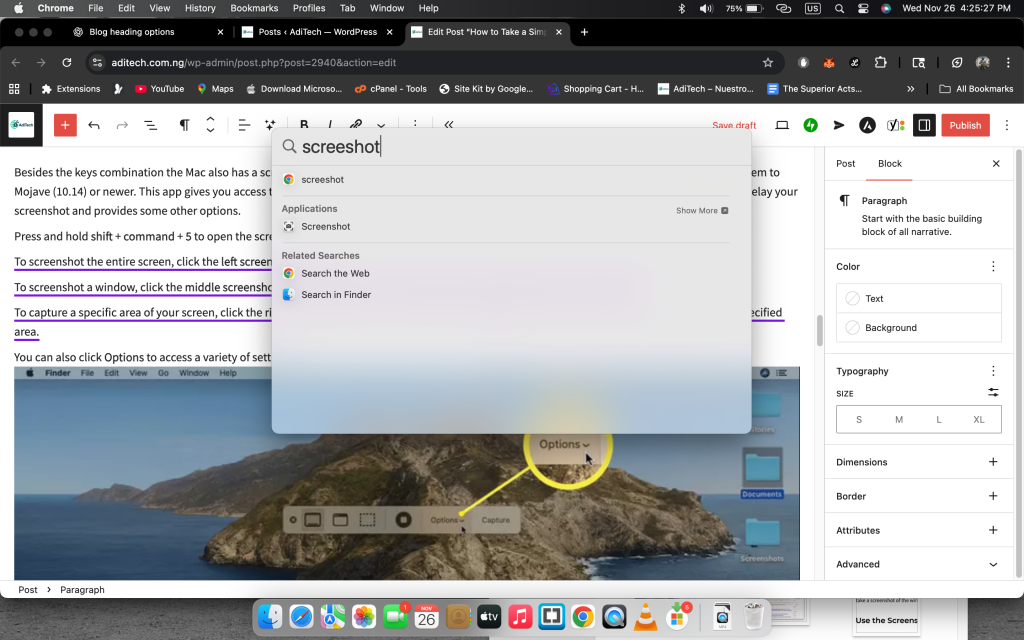
Press and hold shift + command + 5 to open the screenshot app.
To capture the entire screen, click the left screenshot icon. The one that looks like a box with a line at the bottom. Then click anywhere on the screen.
To screenshot a window, click the middle screenshot icon that looks like a window. Then click the window you want to capture.
To capture a specific area of your screen, click the right screenshot icon. Now click and drag the highlighted area, then click to capture the specified area.
Where Are Screenshots Stored on Mac?
By default, your screenshots are saved directly to your desktop. If you don’t see them there, then you or someone else changed the location.
Other Questions You May Have
1 – How do I crop a screenshot on my Mac? After you take a screenshot, select the thumbnail preview and select the Crop icon. Or, open the image file in the Photos app and select Edit > Crop.
2 – How do I paste a screenshot on my Mac?Hold down the Control key while taking a screenshot to copy it. Then select where you want to paste it. Finally, press Command +plus V.
3 – What format is the screenshot saved as? MacOS screenshots are saved as PNG files. If you want to convert the file to JPG, double click the screenshot file. It should display in the Preview app. In the File menu > Export > choose JPEG in the Format pull-down menu. Then click Save.
Discover more from AdiTech
Subscribe to get the latest posts sent to your email.